


Improving the TestStand Wait Step for Debugging

The basic configuration of a TestStand Wait step causes a sequence to wait for a specific amount of time before proceeding to the next step– for example, 1 second in the screenshot below.

Short vs. Long TestStand Wait Steps
This mechanism works well when the specified wait time is short. However, when test developers encounter a TestStand Wait step configured for a longer time interval during sequence debugging, they may want to proceed to the next step before the entirety of the time interval. Unfortunately, terminating the sequence is the only way to exit a TestStand Wait step prematurely, leading test developers to choose between inefficiently waiting for the step to complete or terminating and starting the test sequence over again.
Another problem with TestStand Wait steps is they do not provide visual indication of how much time has passed or how much time remains in the step. For both test developers and operators, this makes it difficult to predict how long a TestStand Wait step will take to complete.
How to Use “Wait With Status Bar”
Using Wait with Status Bar is simple:
- insert an instance of Wait with Status Bar into MainSequence.
- Under the Module tab step settings, set the parameter nTimeInterval to 30 and execute the sequence. Once the execution has entered the Wait with Status Bar step, pause the execution.
- The TestStand Sequence Editor will let you view the step currently in process within the Wait with Status Bar.
- You can exit the the sequence prior to Parameter.nTimeInterval having elapsed by right-clicking on the step below the While Loop End step and select Set Next Step to Cursor.

- Resuming execution causes the Wait with Status Bar sequence to immediately return to the calling sequence, shortening the wait time without terminating.
Improving TestStand Wait Steps
The above issues can be addressed by creating a simple sequence that replaces TestStand Wait steps for specific time intervals, helping improve the efficiency of test developers and providing operators with a better end user experience. Here’s how to do it:
- Create a new sequence named Wait with Status Bar.
- Add a numeric Parameter named “nTimeInterval”.
- Add a numeric Local named “nStartTime”. “nStartTime” will be used to store a timestamp in the Setup step group and to calculate the elapsed wait time.
By comparing the elapsed wait time to “Parameters.nTimeInterval“ in the loop condition of a While Loop step, a sequence is created that continuously loops while the elapsed time is less than “Parameters.nTimeInterval”. Lastly, add a standard TestStand Wait step with a short wait time within the While Loop to reduce the overall impact on the machine’s processor. The resulting sequence is shown here:

This new sequence provides similar functionality to the TestStand Wait step with one additional benefit. When debugging a sequence, test developers can exit the sequence prior to “Parameters.nTimeInterval“ having elapsed without having to terminate the execution.
What About Progress Bars and Text Fields?
As mentioned earlier, it can be challenging to gauge how much time has passed and how much time remains during execution of a TestStand Wait step. Numeric Test has a solution for this challenge too. The progress bar and test field in the TestStand Sequence Editor’s status bar can be updated with details from the Wait with Status Bar sequence using TestStand UIMessages. Revisiting the sequence in the screenshots above, you can add the following expressions to the post-expression of the Wait step in the main step group.

As you can see in the screenshot below, the first expression updates a progress bar from 0 to 100 percent during the execution of the Wait with Status Bar sequence. The second expression provides text that indicates the total time elapsed and the remaining time the sequence will take to complete. Running MainSequence, you can now visualize the overall progress of the Wait step in the bottom right-hand corner of the Sequence Editor (as shown in the screenshot below).
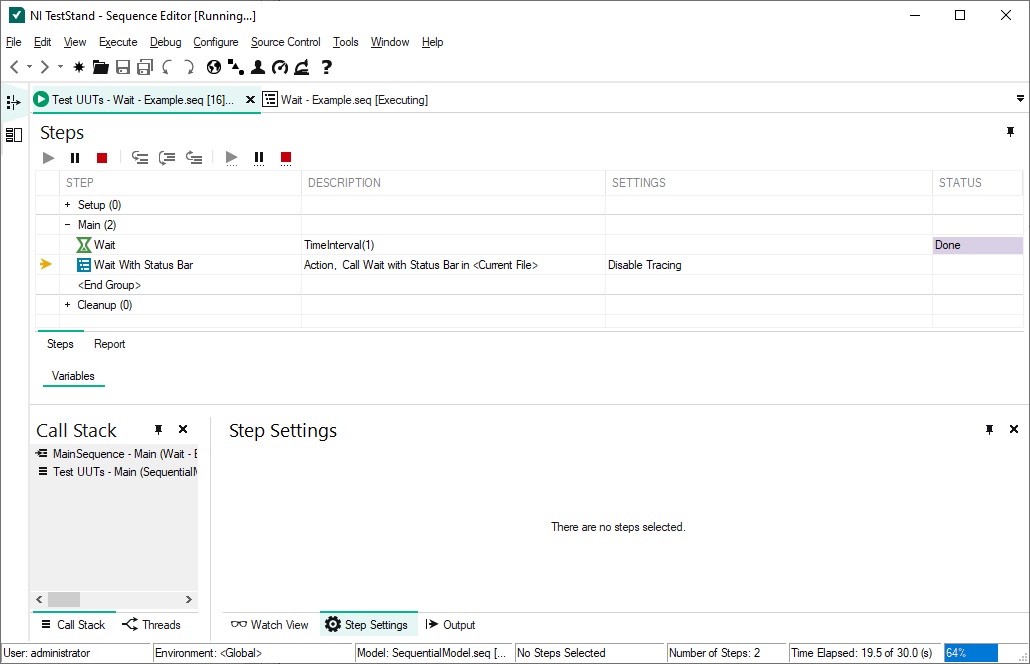
By creating a simple sequence with just a few steps, you can now replace the standard TestStand Wait step with a sequence that is more efficient for debugging and provides operators with valuable information at run time.
Our custom test development services are heavily based on hardware and software tools from National Instruments, allowing us to provide our customers with reliable and high-quality solutions. If you require automated test development services, contact Numeric Test.